Effect Presets
Reuse, save, and share effect parameter configurations across materials with the per-effect kebab menu.
Overview
Each effect's parameter panel includes a menu (the ⋮ button next to the panel title) that opens preset and clipboard actions. These tools let you reuse parameter values across materials, save tuned configurations as named presets, and quickly compare effect variations side by side.
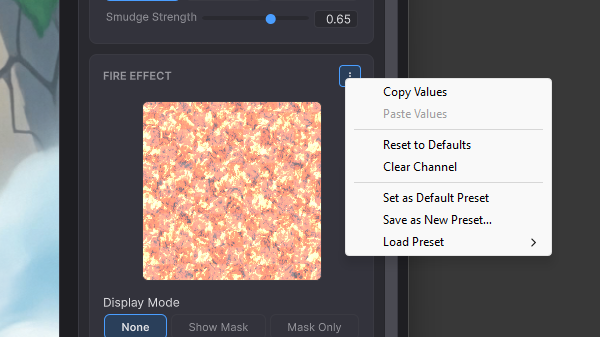
Copy and Paste parameter values
The fastest way to reuse a tuned effect is the clipboard.
- Copy Values. Select an effect whose parameters are configured the way you like, open the kebab menu, and choose Copy Values. Every tunable on the active effect is captured, including textures, colors, vectors, and toggles.
- Paste Values. Open another material's parameter panel for the same effect, open the
⋮menu, and choose Paste Values.
The clipboard is session-scoped. It persists through domain reloads but is cleared when the editor closes. Treat it as a quick workflow shortcut. For values you want to come back to days or weeks later, save a preset instead.
Save as Preset
Open the ⋮ menu and choose Save as Preset…. The save dialog defaults to Assets/Kobapps/LivingArt/Presets/ and pre-fills the file name with the effect's display name plus _Preset. The folder is created automatically the first time you save into it.
A preset captures every tunable on the active effect at the moment of saving. The preset asset records the effect's display name and channel slot, so the Load Preset sub-menu only shows entries that match the channel currently being edited. Renaming a preset asset is safe; renaming the effect's display name is what would unbind it.
Load Preset
The kebab menu's Load Preset sub-menu lists every preset in the project that targets the active effect, sorted alphabetically. Selecting one writes its captured values onto the current material as a single undo step. Loading a preset never modifies the preset itself, so the same preset can be applied to as many materials as you like.
Save as Default and Reset to Defaults
Two related actions complete the workflow.
- Save as Default writes the current parameter values back onto the effect's built-in defaults. From that point on, every new material that activates this channel starts with these values, and Reset to Defaults will restore them.
- Reset to Defaults restores the effect's parameters on the current material to whatever defaults the effect ScriptableObject ships with, or whatever was last captured via Save as Default.